Important: Always Select "Classic Quizzes"
Canvas offers two quiz engines: Classic Quizzes and New Quizzes. Checkmark writing questions work in Classic Quizzes only, so select Classic Quizzes in the "Choose a Quiz Engine" modal. New Quizzes are not supported.
Why Classic Quizzes only?
Canvas gives tools like Checkmark no way to plug into New Quizzes, so Checkmark can't add or check a writing question there.
Prerequisite LTI Setup
Ensure your institution has configured the Checkmark Plagiarism LTI 1.3 Developer Key. See the Canvas Setup Guide if not yet installed.
Connect Checkmark to Canvas once
Adding a writing question needs the teacher to connect Checkmark to Canvas once. If you haven't yet, use the Connect Checkmark to Canvas button in the Checkmark panel on the quiz page.
Not the Document Processing App
Canvas's Document Processing App doesn't run on quizzes of either kind. Writing questions are added from the Checkmark panel on the Classic Quiz page instead.
Planning a New Essay Quiz? Use an Assignment
Classic Quizzes are in maintenance mode at Instructure, and New Quizzes becomes Canvas's default from January 2027. Plan new essay quizzes as assignments.
For a quiz-style essay checked by Checkmark, create a text-entry or file-upload assignment and add Checkmark under Document Processing App. Reports appear in SpeedGrader. The trade-off: a Canvas assignment has no quiz-style time limit.
Canvas Document Processor guide4 Supported Student Submission Methods
Students can respond to Checkmark Plagiarism quiz questions using their preferred workflow without leaving the Canvas quiz session.
1. File Upload (.docx)
Students upload local Word documents directly into the Checkmark question module.
2. Google Drive SSO
One-click Google authentication allows students to attach Google Docs straight from Drive.
3. OneDrive SSO (.docx)
Microsoft SSO integration lets students select Word documents hosted on OneDrive.
4. Native In-Quiz Writing
Students type their essays directly in the rich text box with live auto-drafting and word count.
Teacher Setup: Creating & Configuring the Quiz
Build your quiz normally with standard questions, then insert Checkmark Plagiarism questions using the quiz widget.
Create a Quiz in Your Course
Navigate to Quizzes and click + Quiz/Survey
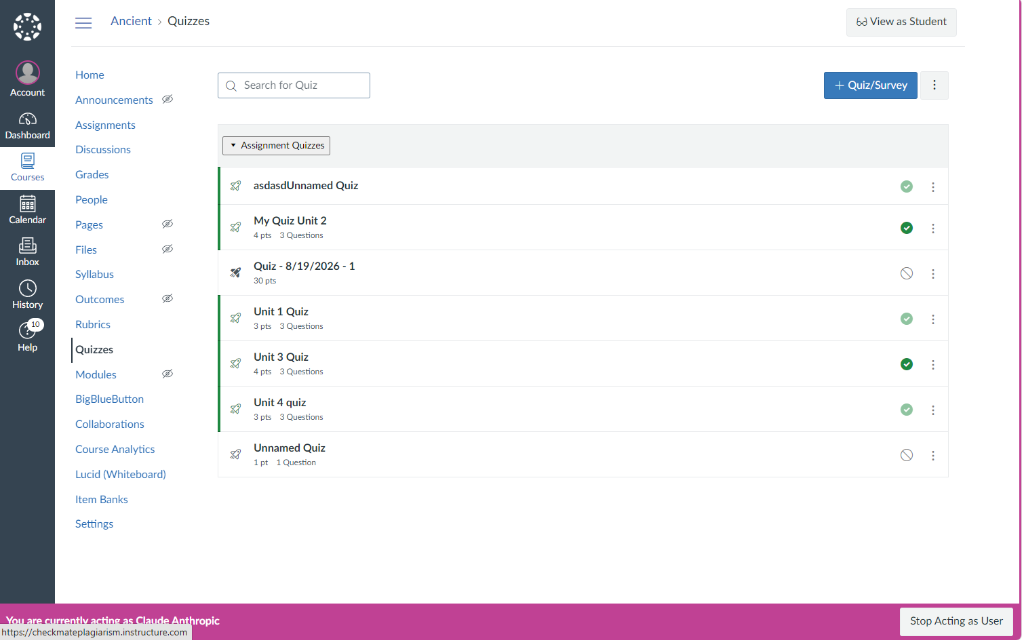
- • Log in to Canvas and open your course.
- • Select Quizzes from the left-hand course navigation.
- • Click the blue + Quiz/Survey button in the top-right corner.
Select "Classic Quizzes"
Choose the Classic Quizzes engine in the dialog
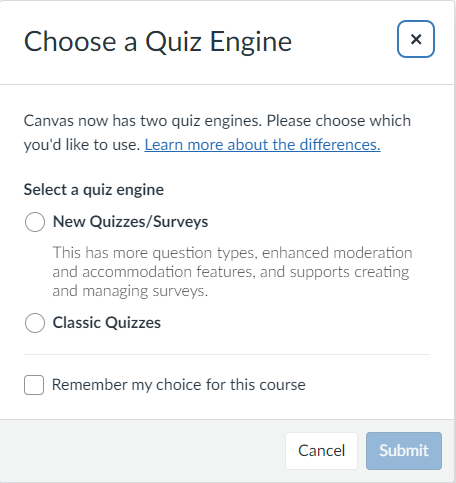
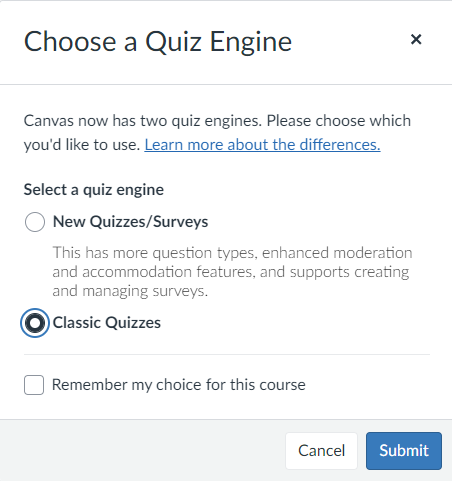
- • Canvas displays the Choose a Quiz Engine prompt.
- • Select the Classic Quizzes radio button.
- • Click Submit to enter the Classic Quiz builder.
- • Don't choose New Quizzes: Checkmark writing questions aren't supported there.
Enter Quiz Title & Details
Configure basic quiz settings in the Details tab
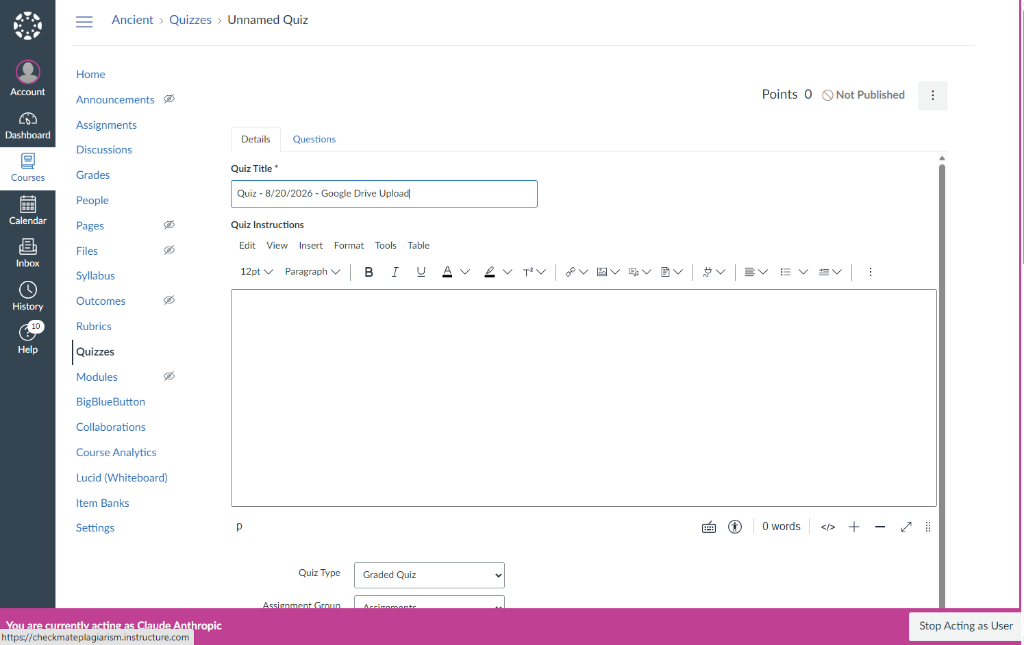
- • In the Details tab, enter a clear Quiz Title (e.g. Midterm Exam - Essay & Quiz).
- • Configure quiz options such as Shuffle Answers, Time Limit, or Allowed Attempts as needed.
Build Standard Questions Normally
Add Multiple Choice, True/False, or Short Answer questions
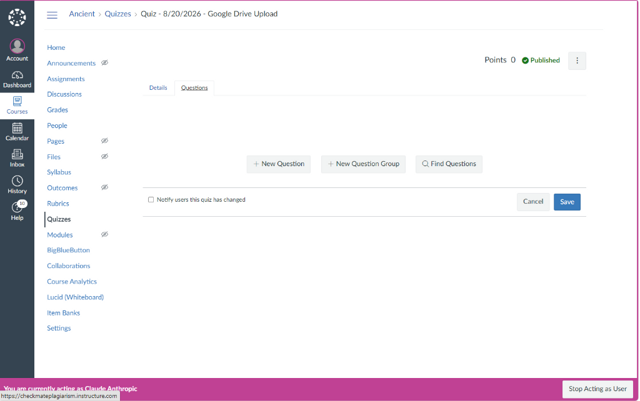
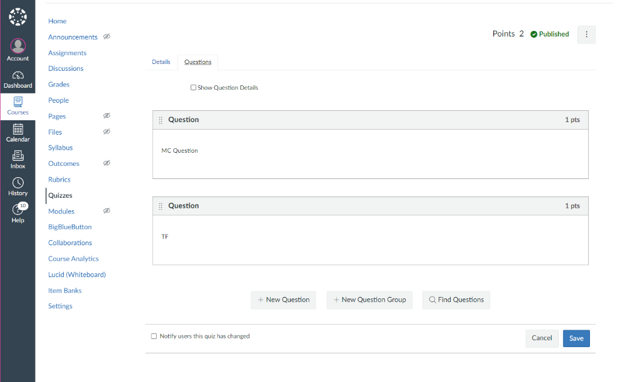
- • Switch to the Questions tab and click + New Question.
- • Add any standard question types and assign their point values.
- • When finished adding your standard questions, click Save & Publish at the bottom of the page.
Locate Checkmark Plagiarism Section
Scroll below quiz info on the published quiz overview
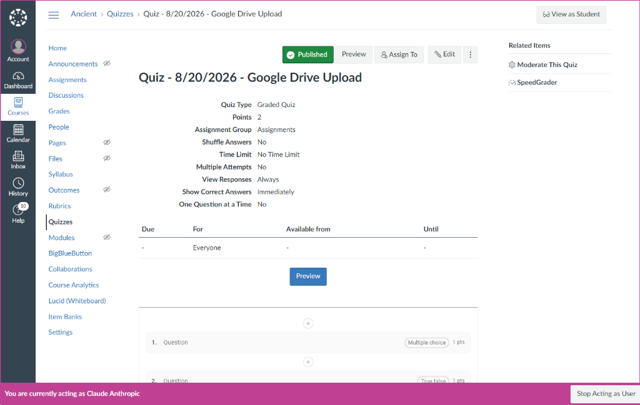
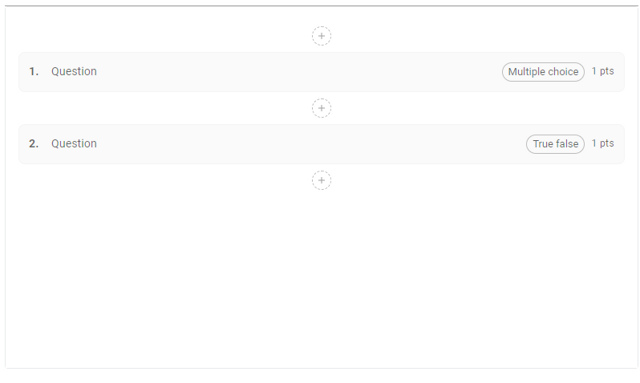
- • On the published quiz page, scroll down below the standard quiz information.
- • You will see the integrated Checkmark Plagiarism question manager.
- • Notice the Plus (+) insertion buttons above, between, or below questions.
- • If you haven't connected Checkmark to Canvas yet, click Connect Checkmark to Canvas in the panel first. You only do this once.
Configure Checkmark Quiz Question
Set Question Name, Prompt / Instructions, and Points
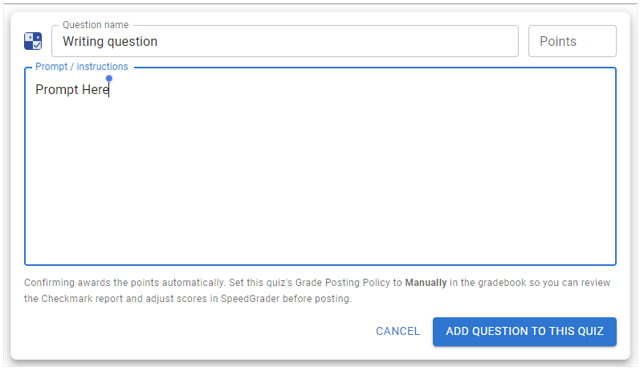
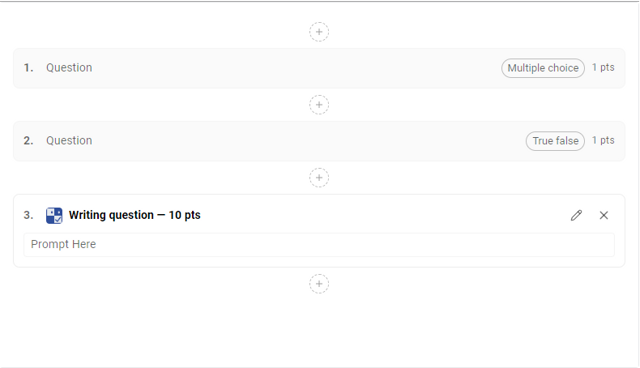
- • Click the Plus (+) button where you want to insert the written question.
- • Enter the Question Name (e.g. Essay Question #1), the Prompt instructions, and the Points value.
- • Click Add Question to this Quiz.
- • Click Save Changes at the top of the quiz page to finalize.
Student Experience & Submitting Answers
Students take the quiz in Canvas, answer standard questions, and submit written work via Checkmark Plagiarism.
1. Start Quiz with Checkmark Notification
Clear banner alerts students that Checkmark is enabled
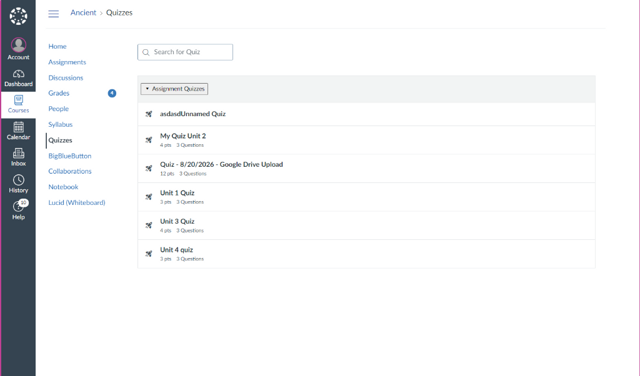
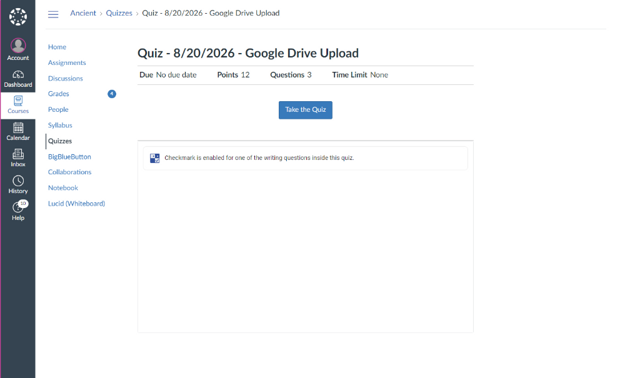
When the student opens the quiz, a banner states: "Checkmark is enabled for one of the writing questions inside this quiz." The student clicks Take the Quiz.
2. Answer Standard Questions & Reach Checkmark
Normal answering flow before reaching the written prompt
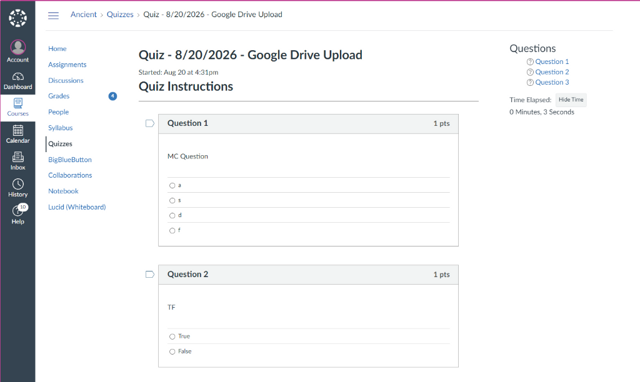
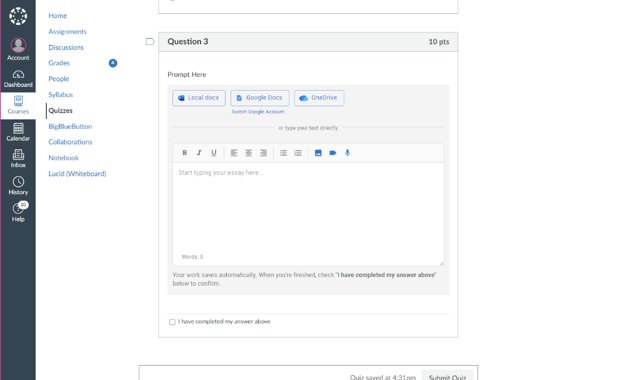
The student completes standard questions (e.g. Question 1 Multiple Choice, Question 2 True/False). When they reach the Checkmark question, the embedded submission container displays all 4 available submission options.
How Students Complete the Checkmark Question
Students choose any of the 4 supported submission methods within the quiz question box:
Students click the Local docx button to select a Word (`.docx`) file from their computer or device. The document is validated and attached instantly.
Students click the Google Docs button, authenticate via Google SSO popup, and pick their active essay directly from their Google Drive folder.
Students click the OneDrive button, authenticate with their school Microsoft 365 account, and attach their OneDrive document.
Students compose their response directly inside the embedded rich text editor with live word count, paragraph tools, and auto-draft saving.
SpeedGrader™ & Plagiarism Report Verification
Review student quiz attempts, inspect similarity percentages, and open comprehensive writing reports.
SpeedGrader™ Question Card
Direct similarity score badge & View Report button
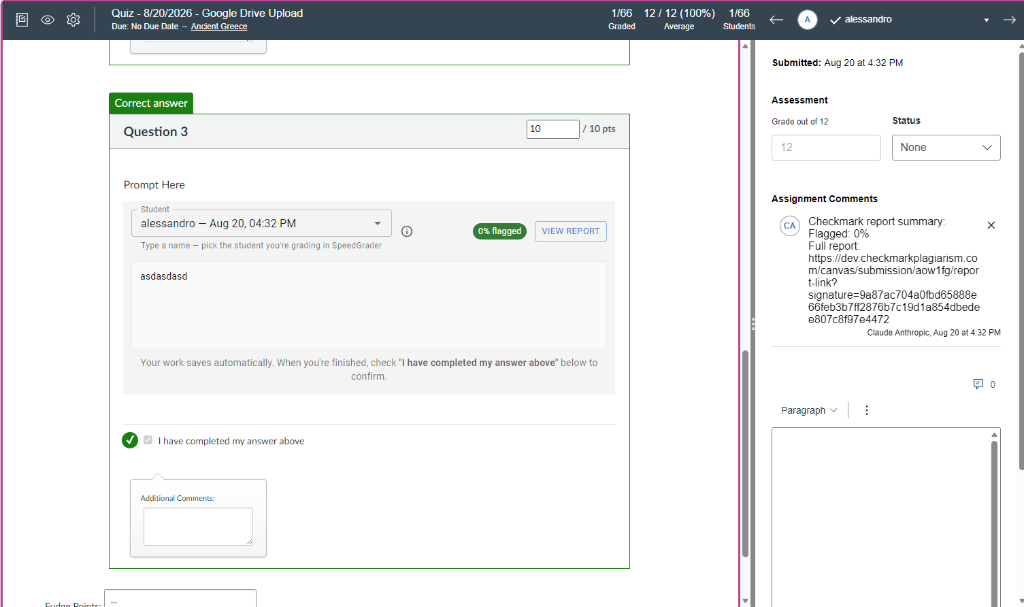
- • Open SpeedGrader from the right sidebar of the quiz page.
- • Select the submitting student to review their quiz submission.
- • Scroll to the Checkmark Plagiarism question: see the submission status, similarity flag badge (e.g. 0% flagged), and the blue VIEW REPORT button.
Assignment Comments Report Link
Instant access in the SpeedGrader right sidebar
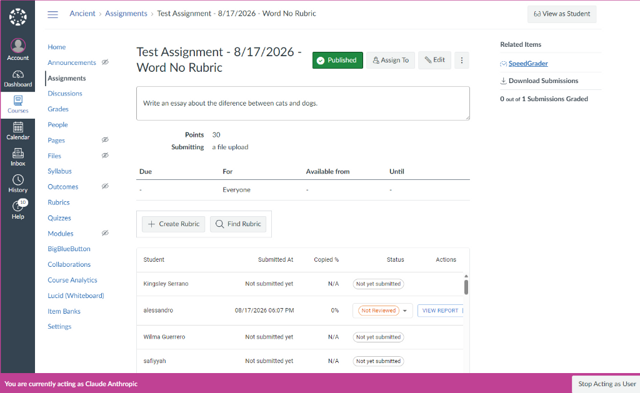
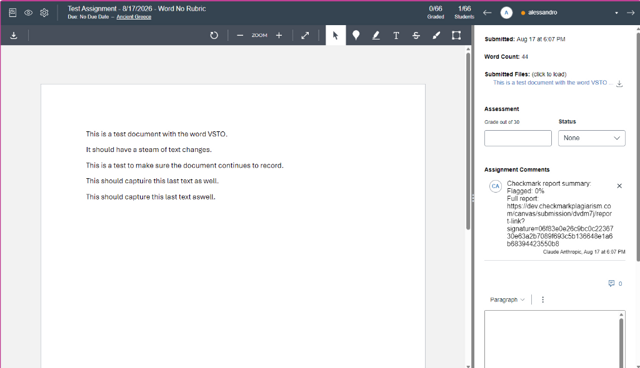
- • Checkmark automatically posts a secure, direct report link into the Assignment Comments feed.
- • Teachers can click the link anytime to view full AI detection breakdown, web source matches, copy-paste telemetry, and writing playback.
What Teachers Get Inside the Checkmark Report
Comprehensive academic integrity telemetry for written quiz questions:
🔍 Plagiarism & AI Analysis
Side-by-side web source matching, internet archive comparisons, and sentence-level AI probability indicators.
⏱️ Keystroke & Replay History
Visual writing timeline, edit sessions, copy-paste events, and video-like replay of how the response was crafted.
📊 Gradebook Synchronization
Scores entered in SpeedGrader sync automatically to the Canvas Gradebook alongside all other quiz questions.
Frequently Asked Questions
Answers to common questions about using Checkmark Plagiarism with Canvas Quizzes.
Can I have multiple Checkmark questions in one quiz?
What happens if a student uses Google Drive or OneDrive?
Can I mix standard auto-graded questions with Checkmark?
Why is Classic Quizzes required instead of New Quizzes?
Can I use Document Processing App on a quiz?
Do I need to connect Checkmark to Canvas?
Explore More Canvas & Teacher Guides
Check out our other guides for setup help, assignments, autograding, and report analysis.