Yes. Google Docs assigns a unique color-coded highlight to each collaborator account in Version History, allowing teachers to see exactly which sentences and paragraphs were added or edited by each individual user. To evaluate group assignments with complete precision, schools use Checkmark Plagiarism, which automatically calculates exact percentage authorship contributions, active typing hours per student, and individual keystroke playback timelines.
Group writing projects are an essential component of collaborative learning, but grading them has historically been fraught with inequity: "Did all four group members contribute equally, or did one student write 85% of the essay while the others merely fixed a few commas?" Furthermore, in individual assignments, version history can reveal unauthorized ghostwriting if an outside Google account (such as a parent or private tutor) suddenly authors entire paragraphs. Leveraging contributor attribution telemetry ensures fair individual grading and prevents academic fraud.
Below is a comprehensive guide on tracking contributor attribution in Google Docs.
Checkmark Plagiarism analyzes group contributions by pairing essay writing playback with AI detection, plagiarism detection, autograding, and integrations with Google Classroom and Canvas.
The 4 Key Capabilities of Contributor Tracking
1. Color-Coded Text Attribution
Every collaborator's Google account is assigned a distinct color (e.g., green for Student A, purple for Student B), highlighting their exact text additions.
2. Quantitative Authorship Breakdown
Checkmark automatically measures the exact percentage of the final text contributed by each student (e.g., Student A: 48%, Student B: 52%).
3. Individual Active Hours Calculation
Checkmark filters out idle tab time to measure how many active typing hours each collaborator spent composing their designated sections.
4. Unauthorized Contributor Alerts
If a non-enrolled Google account (e.g., a personal email address or tutor) makes edits, Checkmark flags an instant Collaborator Security Alert.
How to Inspect Contributor Attribution in Google Docs
Step-by-step instructions for educators in Google Classroom and Canvas:
- 1. Open Version History: In Google Docs, navigate to File > Version History > See Version History.
- 2. Check the Contributor Legend: Look at the right-hand panel to see the names and colors assigned to each Google account.
- 3. Toggle "Show Changes": Ensure the checkbox at the bottom is checked to highlight user-specific edits on the document canvas.
- 4. Launch Checkmark Group Mode: Open Checkmark to view an aggregated dashboard showing each student's word count, typing time, and playback video.
Read more in how Checkmark writing process analysis works.
Comparison: Manual Google Docs Inspection vs. Checkmark Group Analytics
Checkmark Group Analytics (Automated & Equitable)
- Displays exact percentage contributions per student.
- Logs individual active typing hours and backspaces.
- Screens individual sections for AI and plagiarism independently.
- Generates calibrated individual grades in SpeedGrader.
Manual Google Docs Inspection (Tedious & Subjective)
- Requires scrolling through hundreds of colored lines.
- Cannot calculate exact character or word percentages.
- No individual active time tracking.
- Group members often receive identical arbitrary grades.
A 5-Step Educator Protocol for Grading Group Essays
Group Essay Evaluation Checklist:
- 1. Open the collaborative submission in Canvas SpeedGrader or Google Classroom with Checkmark.
- 2. Review the Authorship Contribution Chart: verify balanced effort (e.g., 25% ± 5% for a 4-person team).
- 3. Inspect each student's Active Typing Duration to confirm genuine individual drafting.
- 4. Check the Contributor Security Log to ensure no external Google accounts edited the file.
- 5. Assign differentiated individual grades based on analytical depth and documented contribution.
How Checkmark Plagiarism Powers Collaborative Grading
Checkmark Plagiarism combines **AI detection, essay writing playback, static AI detection, plagiarism detection, autograding, and Canvas/Google Classroom integrations** to evaluate group writing assignments with total fairness, transparency, and individual accountability.
Frequently Asked Questions
Can a student claim they wrote a section if another account is listed?
Google Docs cryptographically links edits to authenticated Google accounts; if text is highlighted in another user's color, it was authored under that account.
What if one group member pasted another member's writing into the doc?
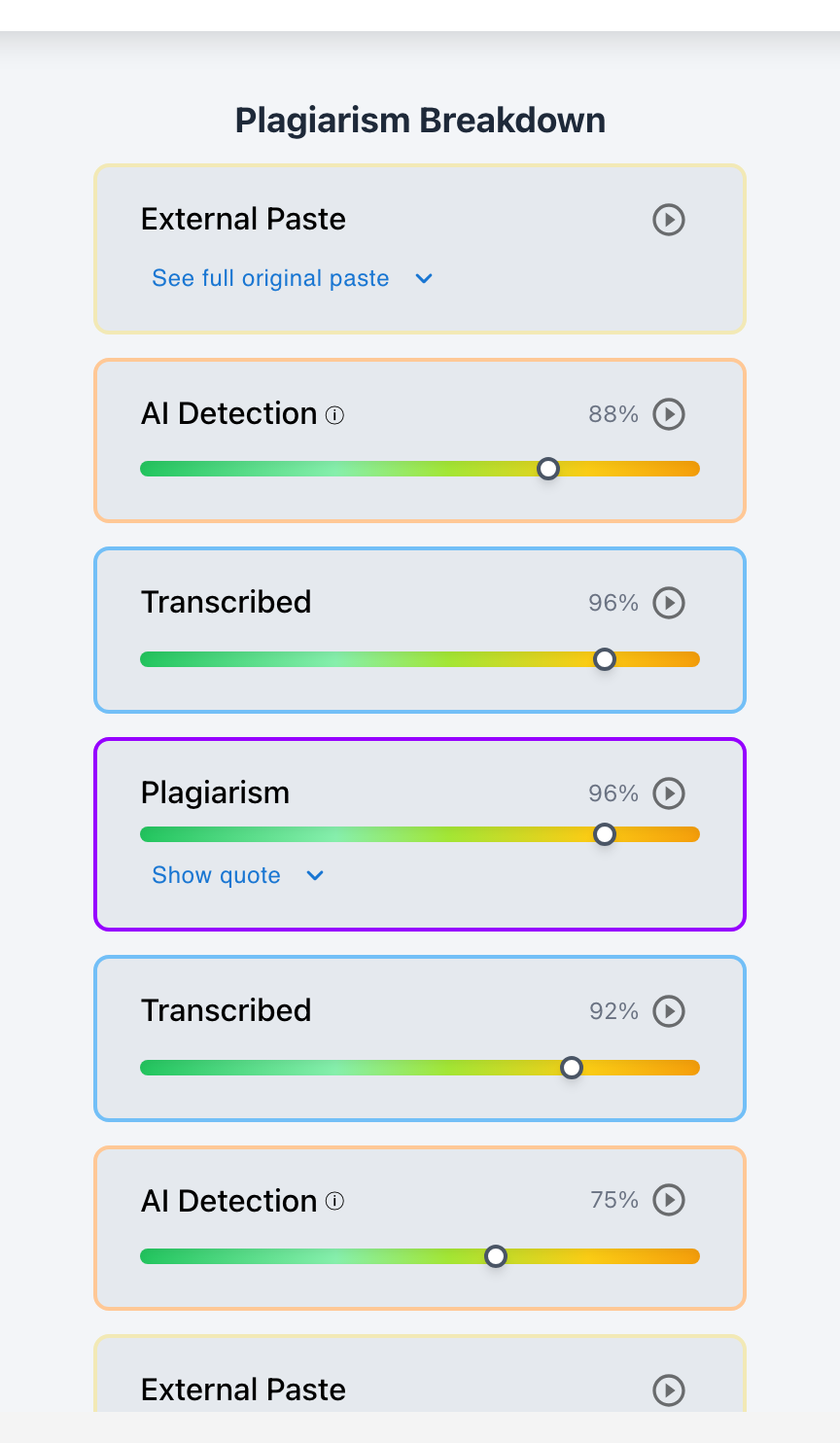
Checkmark Playback will show a large paste event; the teacher can ask the other student to show their original rough draft to verify authorship.
Can teachers see what a specific collaborator deleted?
Yes. Expanding version history allows teachers to see deleted text marked with strikethrough styling in that user's assigned color.
How does Checkmark calculate individual contribution percentages?
Checkmark divides the total character count authored by each specific Google account by the total character count of the final submitted draft.
How does Checkmark Plagiarism integrate with Google Classroom?
Checkmark syncs with Google Classroom group assignments, automatically linking student accounts and generating individual breakdown reports.
What if a parent edited an essay under their own Google account?
Their name and personal email will appear in the contributor list in a distinct color, providing clear proof of outside assistance.
What if a parent edited while logged into the student's account?
If edited under the student's account, Checkmark flags the sudden stylometric departure from the student's in-class diagnostic baseline.
Can students see who wrote what in version history?
Yes. All collaborators with edit access can view version history, encouraging transparency and peer accountability within student teams.
How does Checkmark Autograder grade collaborative essays?
Checkmark Autograder evaluates the overall essay structure while providing section-specific rubric feedback attributed to each individual student.
Why is contributor tracking essential for equitable group work?
Because it ensures that hardworking students receive full credit for their effort while preventing free-riding and unauthorized ghostwriting.
Ensuring Equity, Accountability, and Collaboration
Collaborative writing teaches invaluable real-world teamwork skills. By utilizing Google Docs contributor tracking and Checkmark Plagiarism's group analytics, educators ensure that every student's effort is recognized, individual accountability is maintained, and collaborative grading is always fair.
Checkmark Plagiarism supports this comprehensive approach with AI detection, essay writing playback, static AI detection, plagiarism detection, autograding, and integrations with Google Classroom and Canvas.
See how Checkmark automates contributor tracking and writing playback in group writing assignments. View a sample report or request a demonstration.